
Appearance
Team and roles
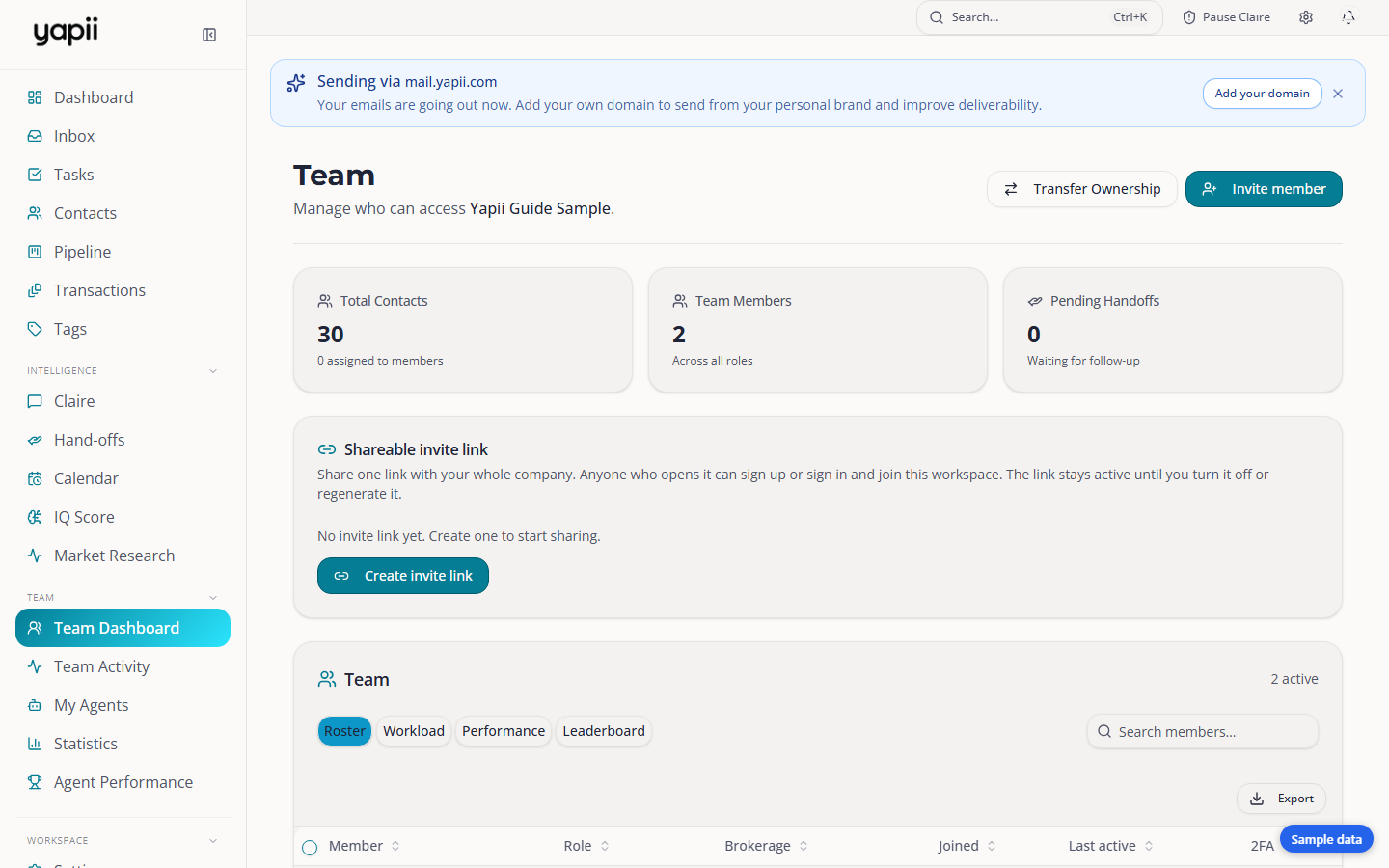
A workspace can be one agent or a whole team. This page covers the four roles, inviting people, and the team pages.
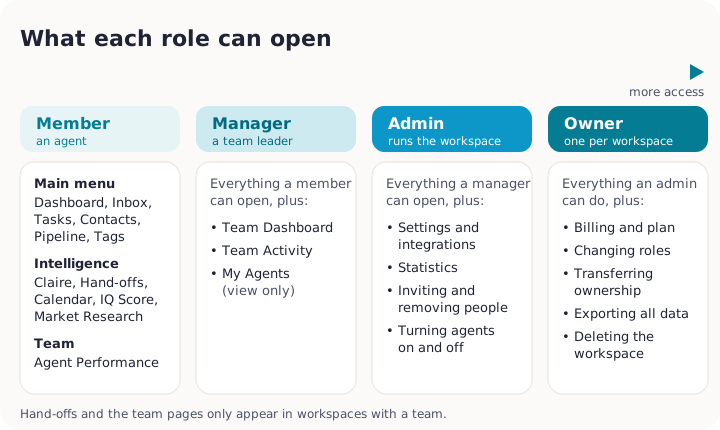
The four roles
| Role | What they can do |
|---|---|
| Owner | Everything. Only the owner can manage billing, change people's roles, transfer ownership, export all data or delete the workspace. |
| Admin | Everything except billing and ownership. Admins open Settings, connect integrations, invite and remove people, and change who sees which contacts. |
| Manager | A team leader. Sees the team dashboard, team activity and leaderboards, and compliance tools such as the suppression list. Can't open Settings. |
| Member | An agent. Works their own contacts, conversations, tasks and appointments. Can't open Settings. |
Which contacts each person sees also depends on your contact visibility setting. See Who sees which contacts.
Inviting someone
Owners and admins
Invitations are sent from the Team page.
- Open Team Dashboard from the sidebar.
- Enter the person's email address and choose their role.
- Send the invitation.
The invitation lasts 7 days. From the Team page you can resend it or cancel it. Sending a new invitation to the same address cancels the old one.
If your workspace can't send email yet, the invitation waits and goes out as soon as your sending domain is verified.
Seats
Each plan includes a number of seats: Operator 1, Builder 3, Expansion and Enterprise unlimited. Invitations that haven't been accepted yet also use a seat. If you can't invite anyone, your seats are full: cancel an old invitation or upgrade.
A join link
Instead of inviting people one by one, an owner or admin can turn on a join link: a permanent link anyone can use to join the workspace. You choose whether it makes people members or admins. You can switch it off or create a new link at any time, and it still respects your seat limit.
Accepting an invitation
Click the link in the invitation email and sign in, or sign up, with the email address the invitation was sent to. If you use a different address, Yapii won't match you to the invitation.
Changing roles and removing people
- Changing someone's role: owner only, on the Team page.
- Removing someone: owners and admins, on the Team page. Admins can't remove the owner, nobody can remove themselves, and the last owner can't be removed. Contacts assigned to the person who left go back to the owner, and the owner is notified.
Handing the workspace to someone else
The owner can transfer ownership in Settings, under Danger Zone. Enter the new owner's email and confirm. The previous owner becomes a Member, and both people get an email.
The team pages
| Page | Who sees it | What's on it |
|---|---|---|
| Team Dashboard | Owners, admins and managers in team workspaces | Everyone on the team, invitations, each person's workload, performance and a leaderboard. |
| Team Activity | Owners, admins and managers in team workspaces | A feed of what people and Claire have done, filtered by person, type and date. |
| My Agents | Owners, admins and managers in team workspaces | Yapii's AI helpers (not people): what they're set up to do and anything waiting for approval. |
| Agent Performance | Everyone | Where each person stands on calls, texts, appointments and deals, compared with the period before. |
| Statistics | Owners and admins | Workspace-wide reports on email, contacts, campaigns, pipeline and texts, with exports. |
If you belong to more than one workspace
Use the workspace switcher at the top of the sidebar to move between them. Each workspace keeps its own contacts, settings and billing.