
Appearance
Tags
Tags are labels you put on contacts, like "Hot Lead" or "First-Time Buyer". Use them to find a group of people quickly, and to send a campaign to everyone with a tag.
Open Tags from the Marketing row of the left menu.
Who can manage tags
By default only owners and admins can create, rename, merge and delete tags, because tags belong to the whole workspace. Everyone can still put a tag on a contact and take one off. If your role isn't allowed, the buttons are grayed out and the page says which kind of change your permissions don't include. An owner or admin can switch tag permissions on for one person.
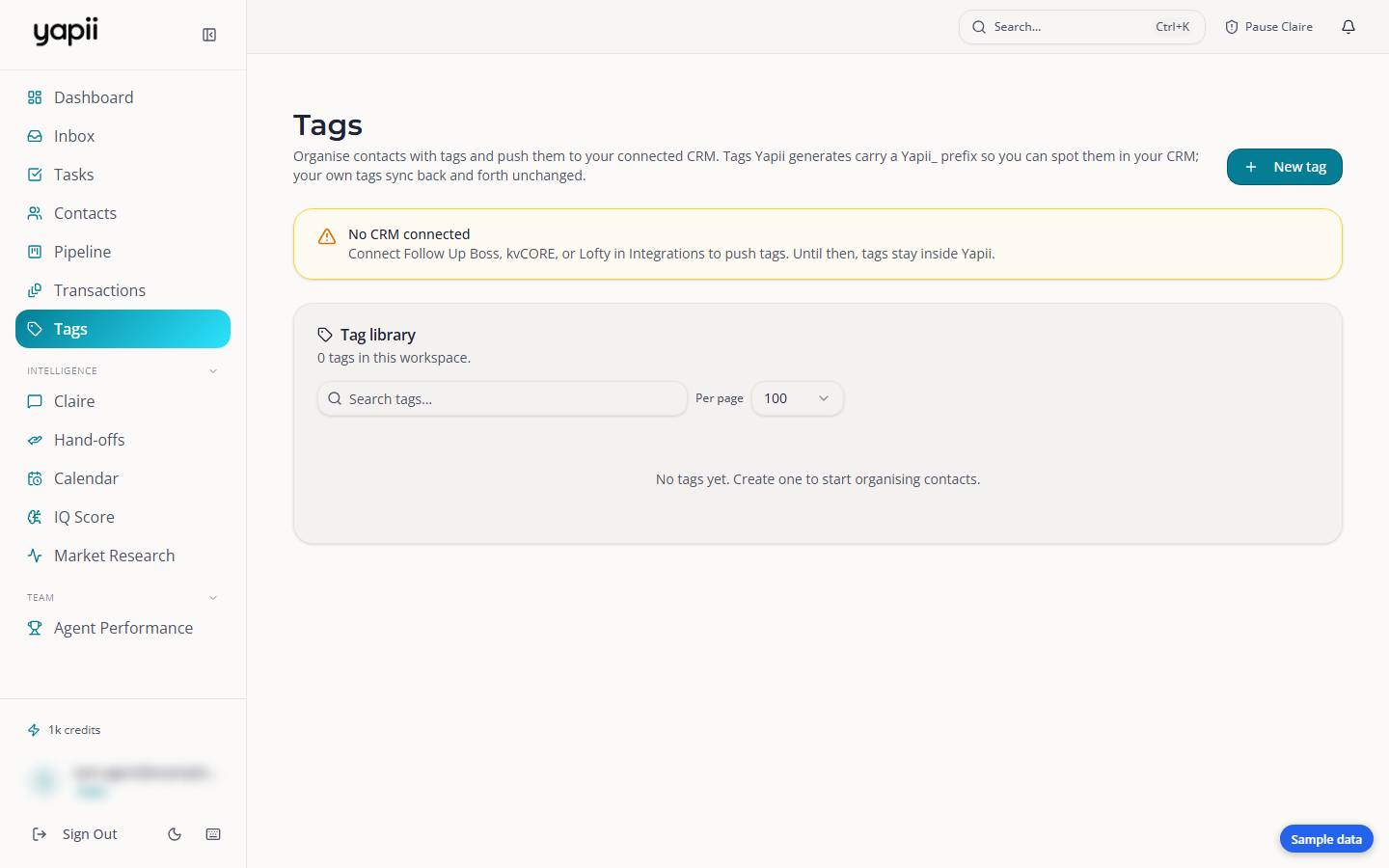
What's on the page
- Tag library: your tags, with how many contacts have each one. Your tags are the ones you created and the ones on contacts you can open, and each count includes only contacts you can open. Tick Show every tag in the workspace to see every tag in your workspace instead. The line above the table says which you are looking at, for example "12 tags that are yours". The counts still include only contacts you can open. An owner or admin can open every contact, so for them the two views match. Search with the box at the top, and choose how many tags to show per page.
- Suspected duplicate tags: tags that only differ by capital letters, like "hot lead" and "Hot Lead". Click Merge to combine them.
- No CRM connected: if you haven't connected Follow Up Boss or BoldTrail (kvCORE), your tags stay inside Yapii. Connect your CRM under Settings, Integrations to send them there too.
Tags that Yapii creates itself start with Yapii_, so you can tell them apart from your own.
A tag that comes in from Follow Up Boss keeps the capital letters it has there, so "Zillow Rentals" reads "Zillow Rentals" on contacts, in the tag pickers and on this page, not "zillow rentals". Yapii keeps the first spelling it sees and does not change it when a later sync spells it differently. When Yapii puts that tag on a person in Follow Up Boss who does not have it yet, it uses the same spelling. Renaming the tag in Yapii replaces it.
Creating a tag
- Click New tag.
- Give it a name and save it.
Adding a tag to contacts
- Find the tag in the list and click Contacts.
- Tick the contacts who should have the tag, and untick anyone who shouldn't.
- Click Save.
You can also tag people from a contact's page or from your contacts list. See Working with contacts.
Seeing who has a tag
Click the number in the Contacts column. A panel opens with everyone who has the tag. From there, click Create segment from this tag to save them as a group you can come back to.
Finding people by their tags
To find contacts by more than one tag, such as everyone with either of two tags, or one tag but not another, use Advanced rules in the Filters panel on the Contacts page. If you are used to Follow Up Boss tags and Smart Lists, see Filters, tags and saved lists if you come from Follow Up Boss.
Sending to everyone with a tag
- Click Send next to the tag.
- Pick a draft campaign. Only draft campaigns that already have content are listed.
- Confirm, and the campaign goes to everyone with the tag.
Be careful
Sending reaches everyone with the tag. Click the tag's contact count first to check who that is.
When Yapii asks you to confirm a large send
If a send would reach more people than your workspace's warning threshold, Yapii stops and asks first. A box titled Send to and the number of people recipients? says how many it would reach and that this is over the warning threshold. It also says nothing will be blocked or split, so confirming sends to all of them.
- Cancel closes the box and sends nothing.
- Send anyway sends to everyone.
A send under the threshold goes out without the box. The same box shows when you start, schedule or resume a campaign from Campaigns, so a campaign to a large list asks once before it goes.
When a campaign cannot finish sending
A campaign can go to a very large list. Yapii sends it in the background, and a list of tens of thousands of contacts goes out the same way as a short one.
If something stops the send, a campaign is never left marked as sent when nothing went out:
- Nothing went out. The campaign goes back to a draft, and you get a notification, Campaign "name" was not sent, with the reason when Yapii knows it, such as email sending being paused or no email provider being set up. Fix the cause and send it again. If every text was refused, send a copy instead: duplicate the campaign and send the duplicate.
- It stopped part-way. You get Campaign "name" stopped part-way, once a day at most. The rest of the list carries on at the next try, a few hours later, and nobody who already got it gets it twice.
- Some people are waiting. A recipient who cannot be sent to right now for a reason that may pass, such as warm-up, a daily limit or paused sending, is tried again, up to 5 tries in all over about 3 days. The campaign page shows a line such as "12 recipients waiting for warm-up, try 2 of 5" with the time of the next try. After the fifth try that person is skipped and the campaign finishes. The wait never holds up anyone else on the list.
Renaming, merging and deleting
- Rename (pencil icon): renames the tag on every contact.
- Merge (merge icon): moves everyone to another tag, then removes this one.
- Delete (bin icon): removes the tag from every contact.
- To delete several tags at once, tick them and click Delete selected.
Be careful
If a CRM is connected, renaming, merging and deleting change your CRM too. Deleting can't be undone.
Good to know
- Duplicate detection and the merge list only look at the tags on the page you're viewing. If you have a lot of tags, show more per page.
- If a tag's cloud icon is grayed out, either no CRM is connected or nobody has that tag yet.