
Appearance
Dashboard
The Dashboard is where your day starts. It shows who to call, what's due and what's been happening, all on one page.
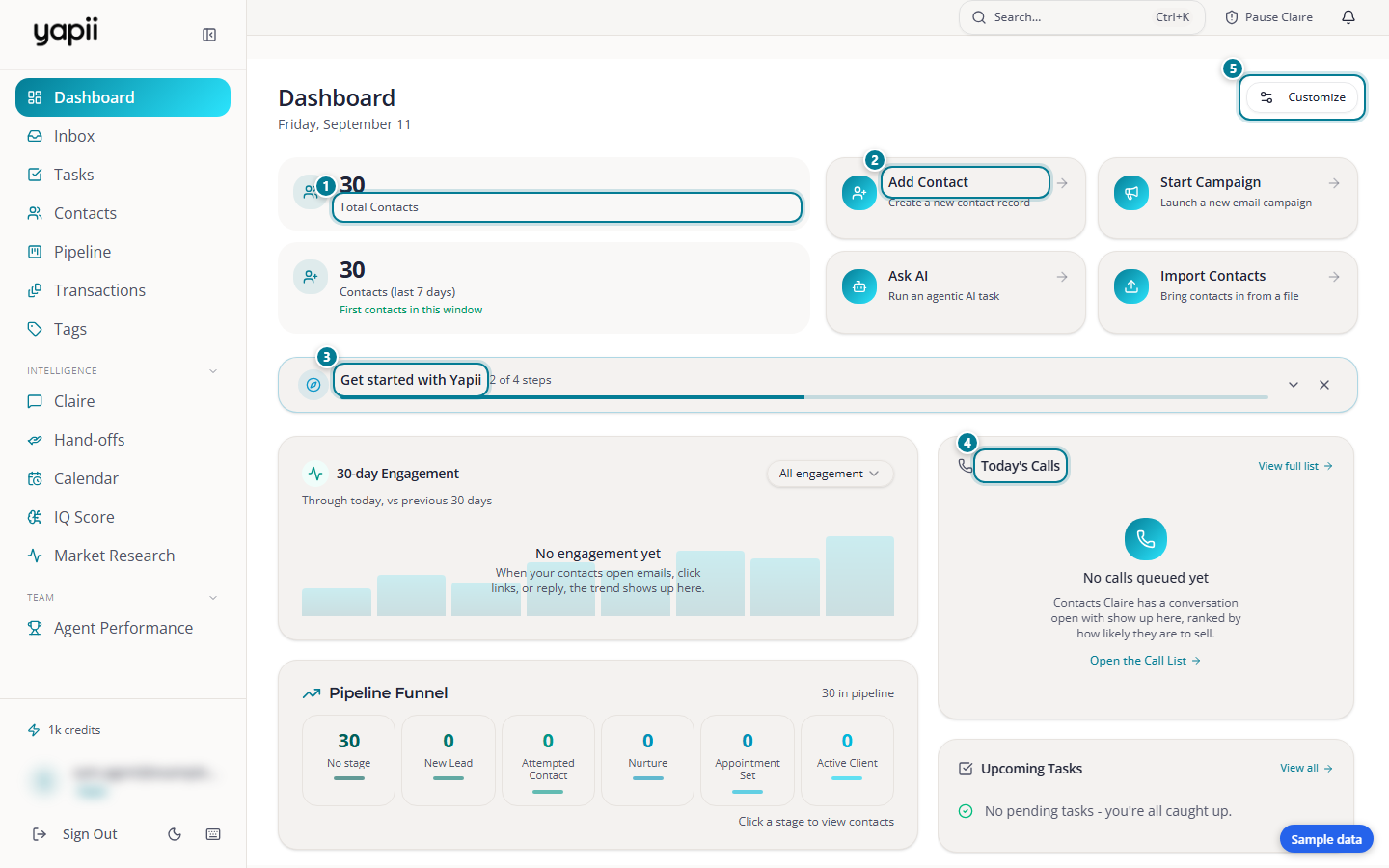
- Your numbers: total contacts, and how many were added in the last 7 days.
- Quick actions: add a contact, start a campaign, ask AI or import contacts.
- Today's calls: who to call today, best first.
- Customize: drag the cards into the order you like.
At the top
- Total contacts, and how many were added in the last 7 days compared with the week before.
- Quick actions, four tiles for common jobs: Add Contact, Start Campaign, Ask AI (when your workspace has it) and Import Contacts. The tiles stay the same width whichever you can see.
- The account check (see below).
- Lead response, a row of five tiles. They show on a team member's own Dashboard. Owners, admins and team leaders do not get them here (see Lead response).
Lead response
A team member's own Dashboard (see If you are a team member) has five tiles that show how fast new leads are being worked. Owners, admins and team leaders do not see them on their Dashboard. They find the same figures in Reporting, on the Lead Sources tab. One date range and one Agent or team picker above the tiles apply to all five. The range starts on the last 30 days, and the buttons are Today, Yesterday, Last 7 Days, Last 30 Days, Last 90 Days, This Month and Custom.
A menu beside the picker, which starts on All leads, narrows the first three tiles by how the contact first came into Yapii (Web leads, Manual leads, Imported leads, CRM sync leads or Unknown, the same choices as on Agent Activity). The two look-ahead tiles are not narrowed.
| Tile | What it shows |
|---|---|
| New leads | Contacts added in the range. The line under the number says how many of them no person has called, texted or emailed yet. Click the tile to open those contacts. |
| Team avg. contact attempts | The calls, texts and emails any person on the team sent to those new leads, divided by the number of leads, not only the leads' own agent. It is the same figure as Contact Attempts in Reporting. |
| Team avg. speed to action | The average wait between a lead arriving and the first call, text or email any person on the team sent. Leads nobody has acted on yet are left out. It is the same figure as Speed To Lead in Reporting. |
| Appointments, next 30 days | Appointments coming up, not counting canceled ones or no-shows. |
| Deals, next 30 days | Open deals due to close in the next 30 days, not counting deals that sit on a transaction file. The line under the count adds up the purchase price of those deals. A deal with no price adds nothing, and the line is left out when the total is zero. |
The first three tiles compare with the period just before the one you picked, for example "+12% vs prior 30 days". For waits, a lower number is the good direction. The last two tiles always look 30 days ahead, whatever the range says, and show no comparison. Claire's own messages never count as acting on a lead. Click the small info button beside a tile name to see what it counts. If a tile cannot load, it says so rather than showing a zero.
The picker offers Everyone, Me and the teams you are on. A team member only ever sees their own numbers, so picking a team still shows only the leads they can see.
The account check
Under the numbers is the account check. It replaces the old "Get started" list. It reads what Yapii actually knows about your workspace, so a row clears itself when you fix its cause and comes back if the cause returns.
The card's headline says how many things need you, for example 2 things need you, with a line underneath such as 1 in progress on our side, 4 done. It opens by itself while something needs you. Click the arrow to open or close it. Each row has a title, one sentence and, when you can act, one button that takes you to the screen that fixes it. Rows are grouped under Needs you, In progress (Yapii or the carriers are working on it, so there's no button and nothing to do) and Done. If Yapii can't read one row just now it goes under Could not check and says We could not check this just now instead of showing as done.
Owners and admins see these rows:
| Row | What it tells you |
|---|---|
| Sending domain | Whether email goes out from your own domain, DNS records still to add, or a domain that's warming up. |
| Mailing address | Shown only while your workspace has no postal address on file, meaning neither a brokerage address nor a mailing address. It asks you to add one, and Add your mailing address opens the card on your Profile. The row goes away once an address is saved. |
| Texting approval | Where your carrier registration stands. See Texting registration. |
| Company phone number | The number your team calls and texts from unless they have their own. Once it is set up, the row names it. Until then it says Yapii is setting one up, or asks you for an area code, with Get number or Choose an area code on the row. See The company number. |
| Claire | Whether she's on, watching only, or paused. Resume Claire is right on the row. |
| CRM | Whether a CRM is connected and in sync, or has stopped accepting Yapii's key (Reconnect). If you don't use one, choose I do not use a CRM and the row counts as done. |
| Time zone | Whether your workspace has one. A workspace still on UTC counts as not chosen yet, so the row stays open until you pick your own zone. It may add where most of your contacts live, as a hint only. Yapii never applies it for you. Set time zone opens Settings, then Profile. |
| Team | How many invitations haven't been accepted yet, with See your team. |
| Your profile | Your name, and whether the email you signed up with is verified. Send again sends the verification link again. |
Everyone else sees Your profile, plus a line about email waiting on a warming-up domain or texting that is off or running on a temporary approval. Those lines have no button, because the screens behind them belong to the owner and admins.
Once everything is done, the card says Your account is ready. The X on that state hides it in this browser. It never hides a row that needs somebody. To see it again, open Settings and click Check my account at the top of the first screen (owners and admins).
One notice at a time
Yapii shows at most one notice bar at the top of any page, the most urgent one. If more are waiting, it adds and N more with a link, See them all in your account check. The notices about texting approval, DNS records and domain warm-up now live on the card instead of in bars. On the Dashboard, owners and admins don't get the Claire paused bar either, because the card has a Claire row with Resume Claire.
The cards
| Card | What it shows |
|---|---|
| Today's Calls | Your call list for today: your own contacts with a phone number, highest IQ score first. It shows up to 8. The number on the card counts the calls on today's list. Hover over it to see how many contacts you could call in total. Click View full list for the rest. |
| Reconnect | Your own contacts who have gone quiet, grouped by heat: Hot, Warm, Cold and Past clients. Each row shows how many days it has been quiet and what your last conversation was. Filter by heat, and sort by Most overdue first or Most recent first. Each row has Call, Text, Hand to Claire and Snooze. Nothing is sent until you press a button. Contacts marked Do Not Contact and archived contacts never appear. |
| Upcoming Tasks | What's due soon. Tick tasks off right here. |
| Top opportunities | Your five highest IQ scores. |
| Recent activity | What's been happening: emails, dashboard visits, texts, calls, tasks and notes. The Needs attention tab shows overdue tasks, hot contacts, stalled work and unanswered replies. The Registration, Inquiries and Website Activity tabs list people who registered on your site, sent an inquiry (a property or seller inquiry, a showing request or an open house sign-in) or viewed or saved a property, searched or visited your site, including page views. A page view from a visitor Yapii cannot match to a contact is left out. When a contact's details changed, the row shows the field, then Was and Now lines. A row about one contact also shows that contact's Stage and who it is Assigned to. Under the tabs, a date range chooses how far back it looks: Today, Yesterday, Last 7 Days, Last 30 Days, This Month or Custom (up to 12 months back). It starts on Today, so a quiet day can look empty, and it is not shown on Needs attention. Owners, admins and team leaders get an agent picker under the tabs, with Everyone as the first choice, and View all people opens the Contacts list for the person you picked. |
| 30-day Engagement | How active your contacts have been over the last 30 days, compared with the 30 days before. |
| Pipeline Funnel | How many contacts are in each stage, drawn as a stepped funnel that follows your workspace's own stages. Stages you set to Outside the funnel, such as Trash, are listed under it. See The Pipeline Funnel on the Dashboard. |
| Claire - AI Relationship Agent | What Claire has been doing. Conversations Claire closed today counts the conversations she ended on purpose, for example after a wrong number, a refusal or a "no thanks", with the reasons. These raise no hand-off, so they are not missed replies. Only conversations where Claire herself texted, called or emailed the person are counted. The reasons include Asked us to stop (the person told her to stop) and Already on your stop list (they were already on a stop list, so she never had to be told). Click it to see the list and filter it by reason. The tiles Appointments booked and Claire tasks set open a panel on the Claire page with the people behind the number (see The people behind a number). The activity feed lists a text reply only from a contact Claire has a conversation with, and not from a contact in a stage Claire never contacts. |
| Contact Consent | How many contacts have agreed to calls and texts, and how many have opted out. |
| Home Value Email | How the monthly home value email is going: who's due, who's been sent it, and why some can't be sent (for example, a missing address). |
| Intelligence Reports | Monthly reports about your database (owners and admins). |
The monthly Portfolio Report
Once a month Yapii builds a Portfolio Report for your workspace, titled with the month, for example October 2026 Portfolio Report. You can build and download the PDF yourself from Settings, Email & Sending, on the Monthly Portfolio Intelligence card: press Generate & download PDF, or look first with Preview current period and View full preview. This page covers what the report shows.
The report leads with the numbers, then goes into detail:
- The front page shows the estimated value of the homeowners you track, how many homeowners that is, and how both compare with last month. It also shows your average seller score.
- Your database shows how many contacts the workspace has, what share of them have a tracked home (never more than 100%), and a bar chart of Where your contacts come from, with each lead source's share of all contacts. Next to it are your active playbooks and how many people are in each.
- People to act on lists Call these first, your top recommended calls by seller score, then Most engaged homeowners and homeowner activity by week.
A figure Yapii cannot measure is left out of the report instead of showing as zero, so a smaller workspace gets a shorter report. The report does not show an equity figure. Names that were typed in capitals appear in normal capitalization, and very large values are shortened into thousands, millions or billions. A workspace that has no tracked homeowners yet gets a short note saying the first report is waiting on homeowners instead of a blank report.
Reconnect
A contact is quiet when nobody on your team has had a real conversation with them for longer than their mark. A real conversation is a text or email a person sent, a call a person placed, or anything the contact sent in. Messages Yapii sends on its own, such as Claire's texts, campaigns and the monthly home value email, do not reset the clock.
The marks depend on heat. By default a Hot contact is quiet after 7 days, Warm after 30, Cold after 90 and a Past client after 180. A contact with no IQ score yet counts as Cold. An owner or admin can change the four marks in Settings, under Advanced, on the Scoring & access tab. A hotter heat can never have a longer mark than a cooler one.
Snooze hides a contact for 3 days, 1 week, 2 weeks, 1 month or a date you pick. Hand to Claire follows the same rules as starting Claire anywhere else, so she only takes contacts she is allowed to work.
You can also get one email each morning that lists your quiet contacts. Turn it on or off on your Profile with Email me my Reconnect list each morning. There is no email on a day when nobody has gone quiet.
Working your call list
Today's calls only lists contacts you can call. It leaves out anyone marked Do Not Contact, anyone who has opted out of calls or texts, anyone who said no to calls, and numbers on your suppression list.
Each contact on the card has two buttons:
- Call asks Claire to phone the contact for you. It doesn't dial from your own phone. You'll see Call queued when Claire is placing the call, or Call not placed with the reason if she can't.
- Skip takes the contact off today's list. They can come back tomorrow.
Call queued has an Undo button for the first few seconds. Press it before the call goes out and the message changes to Call canceled, and Claire does not call. After that, the call is listed under Queued calls on the Calls page, marked Started by you or Started by a teammate, with a Cancel button until it dials. A call waiting for approval says Waiting for approval. Cancelling a call you started does not touch Claire's own scheduled call to the same person. The same Call button and Undo are on the Call List.
Click a contact's name to open their page, where you can call them yourself.
Each weekday morning you also get your call list by email.
The Call List page
View full list on the card opens the Call List page, and on a phone the Calls tab opens it too. It has two tabs:
My call list: your contacts ranked by how likely they are to sell, queued for you to call, with how many are waiting.
Engaged by email: people who opened their home value page from an email and did not finish, newest first. A line on each says how far they got (Opened their page, Started the form or Reached the last step) and when. Look back chooses how far back to look: 14 days (to start), 30 days, 60 days or 90 days. Include opens we cannot prove were a person adds opens that may have come from an email scanner rather than a person, and marks them Not proven a person. Anyone you are not allowed to call is never in this list. Call from the row and log how it went (Talked to them, Left a voicemail, No answer, Call back later, Wrong number or Do not call).
Under it, Opened their page, then opted out lists people from the same period who opened their page but asked not to be phoned. They are marked Opted out of calls and have no call button. Follow up by email from the link on the row, or add a task on their record. The section only shows when there is someone in it.
Looking further back than today
The Claire - AI Relationship Agent and Home Value Email cards each have a row headed So far today. That row has its own date range: Today, Yesterday, Last 7 Days, Last 30 Days, This Month, or Custom, which goes back up to 12 months. The days are counted on your workspace's own calendar, and the heading changes to name the range you picked. Only that row changes. The rest of each card, including Claire's activity feed, stays as it was. The Recent activity card has its own range under its tabs, described in the table above.
The range is only for a look. The Dashboard always opens on Today again, after a refresh or the next morning.
Make it yours
Click Customize to drag the cards into the order you like, then Done. Reset layout puts them back. Your layout is saved for you only.
If you are a team member
A member of the team sees a Dashboard of their own work. It has the Add Contact, Add Task and Open Inbox shortcuts, tiles for My contacts, My open tasks and Unread messages, and a read-only card, Claire is working your leads. The card lists Claire's recent activity on your leads, what she plans next, and anything where she needs you. Each contact named on the card is a link that opens that contact. Below the shortcuts are the five Lead response tiles. A member does not see Claire's controls, or the setup, credits, billing, consent and insights cards.
Whose numbers am I seeing?
Most cards follow your workspace's contact visibility setting (see Who sees which contacts). Today's calls and overdue tasks are always your own.