
Appearance
Working with contacts
Your contacts are everyone in your database: sellers, buyers, leads, past clients and referral partners. This page covers finding, adding, organizing and removing them.
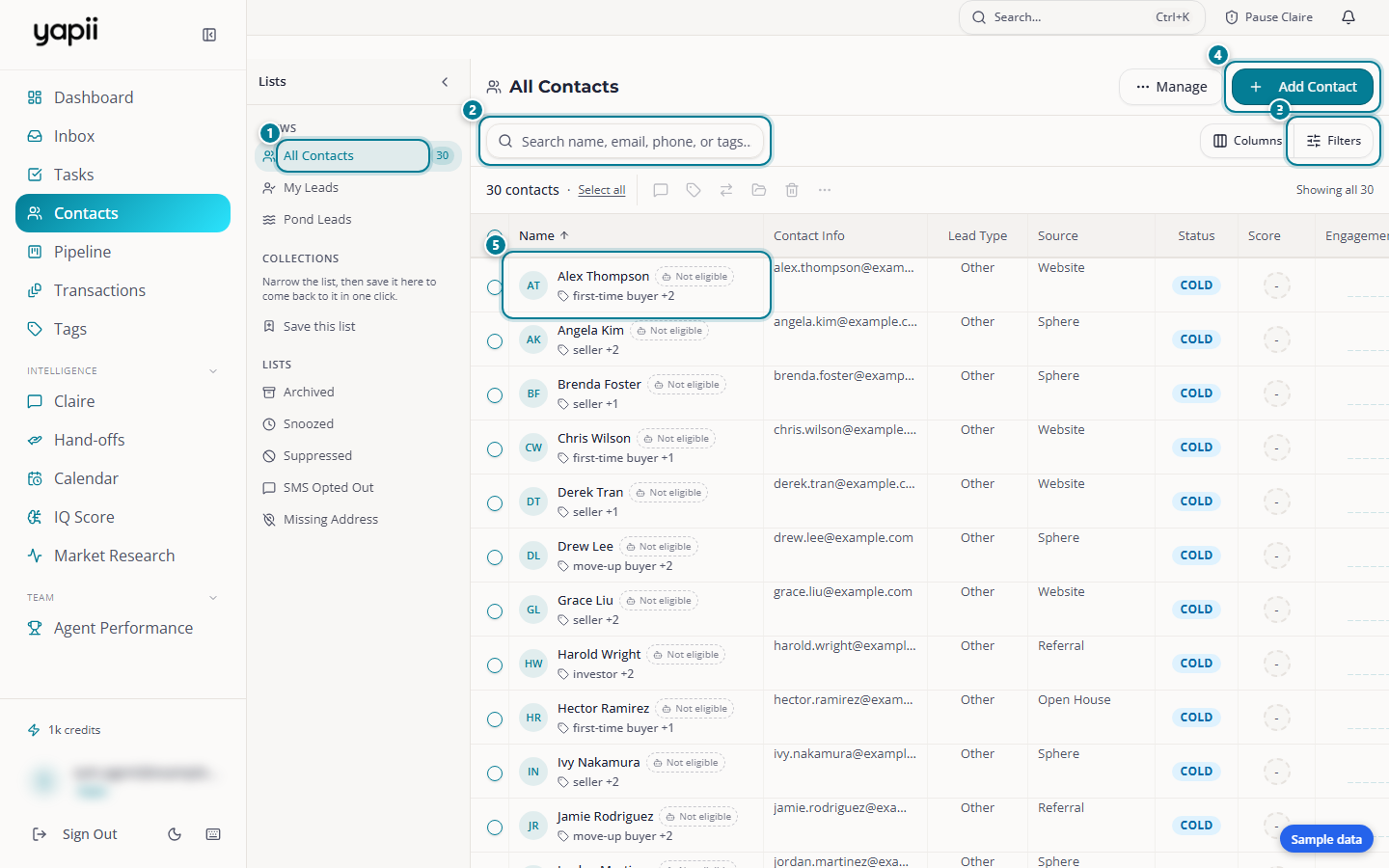
- Views and lists: everyone, your own leads, and lists such as Archived and Suppressed.
- Search: by name, email, phone or tag.
- Filters and columns: narrow the list, and choose which columns show.
- Add Contact
- A contact: click a name to open their page.
The Contacts page
Open Contacts from the sidebar. You'll see:
- Tabs above the list: All Contacts (everyone you can see), My Leads (contacts assigned to you), Pond Leads and Saved Lists. Click one to switch. Each tab shows how many contacts it holds under the filters you have on, so you can see the size of each before you open it. A count is left out when Yapii cannot work one out for the filters you picked.
- Pond Leads opens a menu: All my ponds, or one pond by name. Each pond is listed once, so a pond that came from your CRM and its copy in Yapii do not show as two. It lists the unclaimed leads in the ponds you work that anyone on the team can claim. A lead in a pond is a pond lead until somebody claims it, even when your CRM shows a holder on it: the workspace owner, the person who holds the pond, or the pond's own placeholder user. My Leads leaves those out, and in the Assigned To column they read Pond: and the pond's name. A lead you claim is yours and shows under My Leads. Owners and admins see every pond, and Manage ponds is at the bottom of the menu for the people who can change them.
- Saved Lists opens a menu of your saved lists, with Shared with the team first and My lists after it, each with its count. Click one to open it. Edit lists at the bottom reorders, renames and deletes lists. See Saved lists and sharing them.
- Search this list. The search box in the toolbar narrows the list on screen. It looks in names, emails and phone numbers (second ones too), street, city, zip and tags, and every word you type has to match. It starts at two characters. Lead source, lead type, stage and a state on its own are not searched, and neither are notes or custom fields, so use the filters for those. To find one person anywhere in Yapii instead, press Ctrl+K (Cmd+K on a Mac). See Search from anywhere.
- Manage. A menu with Suppressed and SMS Opted Out (each opens that list), Export CSV (owners and admins), Import CSV and Find Duplicates. Buttons with an outline, such as Manage and Save as list, sit beside Add Contact at the top of the page.
- One toolbar row above the table. It shows the count and the actions for the people you tick, with Dial these leads always there (see Working with many contacts at once). Beside them are the search box and the filters that are on, as pills, and then Dial lists, Columns and Filters at the right end. The pills scroll sideways when there are many, and on a phone the row wraps. A number on Filters tells you how many filters are narrowing the list.
- Filters. Opens the Filters panel, a column beside the list on a wide screen and a sheet on a phone (see Filtering the list).
- Columns. Choose which columns to show, such as IQ score, last email opened or street address. A new account starts with Phone, Email, Stage, Last call, Attempts and Their time showing. Stage is the stage from your workspace's pipeline. Every contact has one. Last call says how the last call placed to them went, such as No answer, and how long ago, or Never called. Attempts counts the calls placed to that contact. Their time is the contact's local time, worked out from their state or, failing that, their phone number's area code, and it is blank when neither says. Status, the Hot, Warm or Cold label that comes from the IQ score, is a different thing. It is in the menu, switched off to start with, and sits last in the column order. Reset to default columns in the menu brings back the starting set.
Each contact is one line tall. A tag editor and a Start Claire chip show up on a row when you hover over it or move to it with the keyboard, so rows stay the same height. A contact's color dot is gone from the rows.
The list is split into numbered pages. The page numbers and the Previous and Next buttons sit above the table, so you do not have to scroll to the end of a page to move on. Rows per page is there too. Pick 25, 50, 100, 250, 500 or 1000, and Yapii remembers your choice on that browser.
Beside each phone number are two round buttons. The green phone starts a call through a phone link on your device, so it does not use the Call from list. The blue speech bubble opens a text box for that person. A contact with no phone number shows no buttons. Hover over a button to see its name.
When a first-to-claim rule has offered you a lead, a Leads to claim card appears above the list with a countdown and a Claim button. See First to claim.
Filtering the list
Click Filters to open the Filters panel. On a wide screen it is a column beside the list, so you can watch the list change as you work. On a phone it is a sheet that ends in a button showing how many contacts the filters leave. The panel opens on a short list of filters in plain words, in five groups:
| Group | Filters |
|---|---|
| Who | Pond, Stage, Tags, Lead type, Lead source and, for owners, admins and team leads, Agent |
| Calling | Last called, Last call result, Call attempts and Has a phone |
| Other activity | Last texted, Last emailed, Last contact and Added |
| Where | City and State |
| Quality | Hot / Warm / Cold |
Click a filter and its choices show as buttons. Click a button to turn the filter on, and click it again to turn it off. The date filters offer Never, Over 7 days ago, Over 14 days ago, Over 30 days ago and In the last 7 days. City and State take a typed value (a state as two letters, such as FL) and Apply. A filter with more than eight choices, such as Tags, Lead source or Stage, gets a search box over its choices. The choice that is on stays first, and when more than 40 match, the rest sit behind a line like "12 more - type to narrow". The box at the top, Find a filter: call, tag, stage..., narrows the list of filters. People marked do not call are always left out of calling lists.
More filters, below the list, opens the longer set. It opens by itself when one of those filters is on, and Fewer filters closes it. It holds:
- Add a filter is a searchable list. Type part of a name, such as call, tag, stage or pond, or look through the groups. Pick one and it joins the panel.
- Each filter that is on also shows as a pill in the toolbar above the list. Click a pill to change it: Filters opens at that filter's control, scrolled into view and marked. Click the x on a pill to remove that one filter.
- Record status chooses Active, Trash or All. Trash shows the contacts you have archived, so you can restore them (see Deleting and restoring contacts).
- Agent, on All Contacts for owners, admins and team leads, narrows the list to one teammate's contacts. It is also in the plain list above. My Leads is already yours, and pond leads have no agent.
- Clear all switches every filter off at once.
- Your filters stay in the page address, so the back button brings them back.
- To keep a set of filters, click Save as list at the top of the page (see Saved lists and sharing them).
Advanced rules
At the bottom of More filters, Advanced rules handles questions the plain list cannot. A filter you turn on in the plain list is kept here as one ordinary rule. Click Add rule, pick a field, then say how to compare it:
- Tags: has any of, has all of, has none of, or does not have all of the tags you pick.
- Pipeline stage, Lead source, Lead type, Assigned to, City and State: is, is not, is any of, or is none of.
- Score: is, is not, is at least, is at most, or is between two numbers.
- Velocity: is, or is not.
- Last contact and Date added: was more than a number of days ago, or was within the last number of days. For Last contact, "was more than N days ago" also counts people you have never reached, and "has never happened" finds only those.
- Has a phone number, Has an email, Do not contact (flagged) and On a dial list: yes or no.
- Pond: is, is not, is any of, or is none of the ponds you pick.
- Last called, Last texted and Last emailed: was more than a number of days ago (people you never reached count too), was within the last number of days, or has never happened. Last called and Call attempts read the call history Yapii holds for the person, including calls brought in from your CRM.
- Call attempts: how many calls have been placed to the person. Choose is at most, is at least, is, is not or is between two numbers.
- Last call result: Connected, No answer, Left voicemail, Bad number, Busy, Did not go through or Never called.
- Callable now: yes finds the people you could call this minute. They have a phone number, are not on a do-not-call list, are inside their own legal calling hours where they live, and have had fewer than 3 calls from you in the last 24 hours. Use it with Match all. Yapii still checks each person again when you press Call.
With two or more rules, Match all needs every rule to be true and Match any needs just one. Match any only decides how the rules combine with each other. The filters above them in the panel still apply. You can add up to 12 rules. A rule you have not finished filling in does not change the list.
Coming from Follow Up Boss? Filters, tags and saved lists if you come from Follow Up Boss shows where its filters, Smart Lists and tags live here, with five worked examples.
Adding a contact
- On the Contacts page, click Add Contact.
- Enter at least a first or last name. Add an email, phone number, address and tags if you have them.
- Save.
If someone you can already see has the same email address, Yapii tells you and offers to open the existing contact instead.
To add many contacts at once, see Importing contacts.
A contact's page
Click any contact to open their page. On a wide screen it has three columns. On a narrower window, from about 1024 to 1280 pixels, it has two: the details and the extra panels stack on the left, and the activity feed takes the right. On a phone the columns become three tabs: Activity, Details and Intel.
- Details: their phone numbers, email addresses and postal addresses, source, who it's assigned to, tags and stage, with the Property and Consent & compliance sections and the contact's Roles. Those two sections stay shut until you open them, and each shows a one-line summary while shut. Property isn't there at all for a contact with no property. Yapii remembers which sections you leave open, on every device you use.
- Activity: the timeline of what has happened with this person. See Recent Activity below.
- The right-hand column (Intel on a phone): the contact's tasks, appointments and Claire's plan, Claire's notes and Claire's own texts and calls, with a group you open when you want it: Automations and Intelligence, for extra insight such as seller readiness.
Recent Activity
Recent Activity keeps the things you act on in view:
- Notes sit at the top, newest first. The latest three show, and Show all N notes opens the rest. Notes that Claire or another Yapii AI wrote, such as the write-up of a call she took, are not here. They are in Claire's notes in the right-hand column.
- A long note shows its first few lines. Click Show more to read the whole note, and Show less to fold it again.
- An email brought over from Follow Up Boss shows in a few short lines: the kind of inquiry and where it came from (for example, "Seller inquiry from Example Homes"), the property, and the start of the person's message. Click View email to read the whole email, with every detail it carried. The email itself is never changed.
- Each note shows when it was added: the time for today, or the date for anything older. Hover over it to see the exact date and time.
- Below them, each day lists the calls, texts and emails, plus one-line changes such as a new stage, an appointment, a consent record or a failed send. A row of tabs, All, Emails, Texts, Calls and Changes, each with a count, narrows the list. A tab with nothing in it is not shown.
- Show system activity at the bottom is closed to start with. It holds the bookkeeping that nobody did or said, such as tag changes, syncs and automation steps. Press Hide system activity to close it again.
- Notes and emails name who wrote or sent them.
- Every email, text and call opens when you click it. Each row says whether it is a Text, an Email or a Call. A step from a sequence shows the message as this contact would get it, with their details filled in, and reads "Sequence:" and the sequence's name and step underneath. A step that was skipped says "Text not sent" and gives the reason. A monthly home value email opens to what was sent, to whom and how it went.
- An email shows how far it got: Sent, Opened (with a count when it was opened more than once), Clicked, or Bounced in red. Opens and clicks fold into the email they belong to instead of taking rows of their own.
- Export at the top right downloads the activity as a CSV or a PDF.
Claire's own calls and texts are not in the activity list. They live in the right-hand column. Each one is a collapsible list, Claire's calls and Claire's texts, that shows the latest entry. Click an entry to expand it. The full-screen button opens the whole log with a search box, a date range and Expand all.
Phone calls in the activity
A call by you or a teammate opens with a Summary when one was made, and View transcript shows what was said. Yapii makes a summary and transcript for a call of 15 seconds or more. A shorter call says "This call was too short for an AI summary (under 15 seconds)." Play recording plays the audio. The transcript reads as short paragraphs. When the words are tagged by speaker it reads as a conversation, one side after the other. Copy copies it. On a call a person made the speakers are not labeled, so the transcript says that, and that the words may be wrong.
A call that has just ended does not have its recording or transcript yet. Where they would show, you see Will Be Available Shortly instead of a player or text, one for the recording and one for the transcript, because one can arrive before the other. It turns into the real thing by itself, without reloading the page. This is on the contact's call cards, in Claire's calls, on the Calls page and on a call's own page. Yapii expects the recording and transcript for up to an hour after a call ends. A call that failed, was not answered, was busy or was canceled never shows it, because nothing is coming.
Whether a call is recorded at all is up to your workspace. See Call recording.
Logging a call yourself
You can log a call without leaving the contact's page. The box above Recent Activity has four tabs: Note, Email, Text and Log call. It stays shut until you press a tab, and pressing the open tab again shuts it.
On Log call:
- Pick an outcome: No Answer, Left Voicemail, Bad Number or Connected. Press it again to clear it.
- Write what happened in Add call notes.... This is optional if you picked an outcome.
- If the contact has more than one phone number, pick the number you called. The first one is marked (primary).
- Press Log Call. The button stays grayed out until you pick an outcome or write a note.
Yapii says Call logged and the call appears in Recent Activity. If you left the notes empty, the entry reads "Logged:" and the outcome. A call logged here does not set a follow-up. For that, or for a follow-up email, press Summarize with AI: it opens the full call notes window with your notes carried over. That window has one Notes box. Pick the Outcome, write what happened, and press Summarize with AI if you want one. The summary replaces the text in the same box, so you can edit it before you save.
Smart Summary
The Smart Summary card sits under that box. It gives a short read, in three to five sentences, on who the person is, what they want, what has happened and one thing to do next. It is open when you arrive, and the header folds it.
- It never writes itself. Press Write summary, and later Refresh. Opening a contact costs nothing.
- The card tells you where it stands: Not written yet, Summary is up to date, or New activity since this was written.
- Writing or refreshing a summary is an AI feature. It needs Claire on your plan and uses AI credits. You can still read a summary that was already written.
AI text drafts
On the Text tab, a row of buttons writes a first draft for you: Introduction, Follow Up, Still Buying and Nurture Lead. Custom lets you say what the text should be about, for example "ask about a showing this weekend", and press Draft. The draft goes into the message box, below anything you already typed. Nothing is sent until you press send, so read it and change it first. Drafts are an AI feature too: they need Claire on your plan and use AI credits.
About the person and their relationships
An About card on the contact's page holds the details that help you address someone properly: title (such as Dr. or Atty.), suffix, date of birth, company, job title and company details. The same fields are on the New contact form and the edit forms. Each one is optional.
The Relationships card links one contact to another in your own words, such as wife, husband or son, and you can type the word for the other side too. Each related person shows with their own phone number, email and address, so you can reach a spouse without leaving the page. When you give no word for the other side, that contact shows the link as Connected rather than a guess. A link Yapii made on its own, such as a referral, cannot be edited, only removed.
The Attached people card is for family and others who are not contacts, such as a spouse or the kids. Click Add, then give a first and last name, the relationship in your own words (Wife, Husband, Kids, or anything else), a Priority tick if you want one, and any phones, emails and addresses. Yapii never texts, emails, calls or scores an attached person, and a message from their number does not land on this contact. To reach one, click Make a contact. That opens the New contact form already filled in and applies your usual duplicate check and lead routing. Afterwards Open their contact takes you to the new page. Adding, editing and removing attached people needs permission to edit contacts. If two contacts are merged, the attached people move to the one you keep.
A contact's language
The Language row on a contact's page, in the details under the lender, is the language Claire uses for every text, email and call to that person. It reads English until something changes it. Pick another from the list: English, Spanish, French, Portuguese, Chinese, Vietnamese, Tagalog, Korean, Russian, Arabic, Hindi or Haitian Creole. You need permission to edit contacts. The change is saved as soon as you pick it, and the timeline notes who made it. Yapii keeps the language on the contact and does not send it to your CRM.
A line under the row says who chose the current language: Set by Claire, Set by a teammate's name, or Set by the contact, when they picked it on their home value dashboard. A language saved before Yapii kept track of this shows no line.
Claire also changes the language herself, in either direction, from what the contact writes or says:
- To another language when the contact's newest message is at least two words in a language she writes in. A single "si" or "ok", a name or a number never changes it. A caller who speaks Spanish is saved as Spanish too.
- Back to English when the contact writes one clear English sentence of four or more words, or two English messages in a row of three or more words each.
- A language you chose yourself holds for 30 days. In that time Claire changes it only when the contact writes a full message in another language. The line under the row says so while it holds.
Claire consent and a contact's deals
The Details column has a Claire consent card. It shows, for Texts and Calls, one of three states: Consent on file, No consent or Opted out. When consent is on file it also shows the date and who recorded it. Email shows too, as a record only, because unsubscribes decide email. A contact marked do not contact says so, and Claire will not reach them. Consent log at the bottom opens the history.
If someone agreed to be contacted somewhere Yapii could not see, such as in person, press Record consent. It is the one control for opting a person in. A dialog asks you to check each way they agreed, and each check is saved as its own record under your name. The channels already on file are marked already on file. To let Claire text and call them, also check This contact agreed to be contacted by Claire. and I understand this is recorded under my name and today's date., then press Record consent. Nothing is sent until both boxes are checked. The record carries your name and the date, and it cannot be edited afterwards, so only do this when they really agreed. The Claire part is not offered for a contact who opted out or is marked do not contact, and you need permission to edit contacts to use any of it.
Asking a person for permission to call. In an email campaign, add the Personal phone-consent link merge tag (it shows as Consent link). Each person gets their own link, good for 45 days. It opens a page that asks "may we call you?". The person types their mobile number and ticks a box agreeing to be called, including with an AI voice assistant. A tick records permission to call. It does not give permission to text. No thanks, or leaving the box unticked, changes nothing. The link comes out blank in a text message. A campaign that asks for permission this way does not need the contact to have a street address.
Under the card, Consent history, Email opt-outs and the sending check shut by default. Consent history lists the records on file, each with Revoke, and can make a consent certificate. The card opens by itself while texts or calls lack consent, and otherwise shows a one-line summary such as "Texts OK, calls OK".
A Deals card lists the deals linked to the contact, each with its stage and, when it has one, its price. Open the deals board goes to the board.
Phone numbers, emails and addresses
A contact can hold several of each. The Details column lists every phone number with its label, then the email addresses, then the postal addresses. Three buttons edit them:
- Edit phone numbers: one row per number, each with a free-text Label and a Bad Number tick. Clicking the label field suggests mobile, home, work, spouse, fax and other, but you can type anything. Add another phone adds a row. The first number is the primary one. Every other number on the contact card has its own call button, so you can ring any of them, not only the primary.
- Edit emails: one row per address, with Add another email. No labels here.
- Edit addresses: a numbered block per address (Address 1, Address 2), each with a street address, a label such as "home", city, state, zip code and country. The map pin follows Address 1.
Bad Number stops texts and calls
Ticking Bad Number is not a note to yourself. Yapii will not text or call that number for that contact again: manual texts, the dialer, Claire's calls and voicemail drops all refuse it.
It applies only to this contact. A household line shared with someone else on your list is still used for them. It does not block email, and it does not go on your suppression list, so clearing the tick puts the number straight back.
The Roles card lists the roles this person holds. Pick one from Choose a role to add it, or remove one. A person's role on a particular transaction is set on that file, not here.
The Collaborators panel lists the teammates this contact has been shared with, on top of the agent it is assigned to. See Sharing one contact: collaborators.
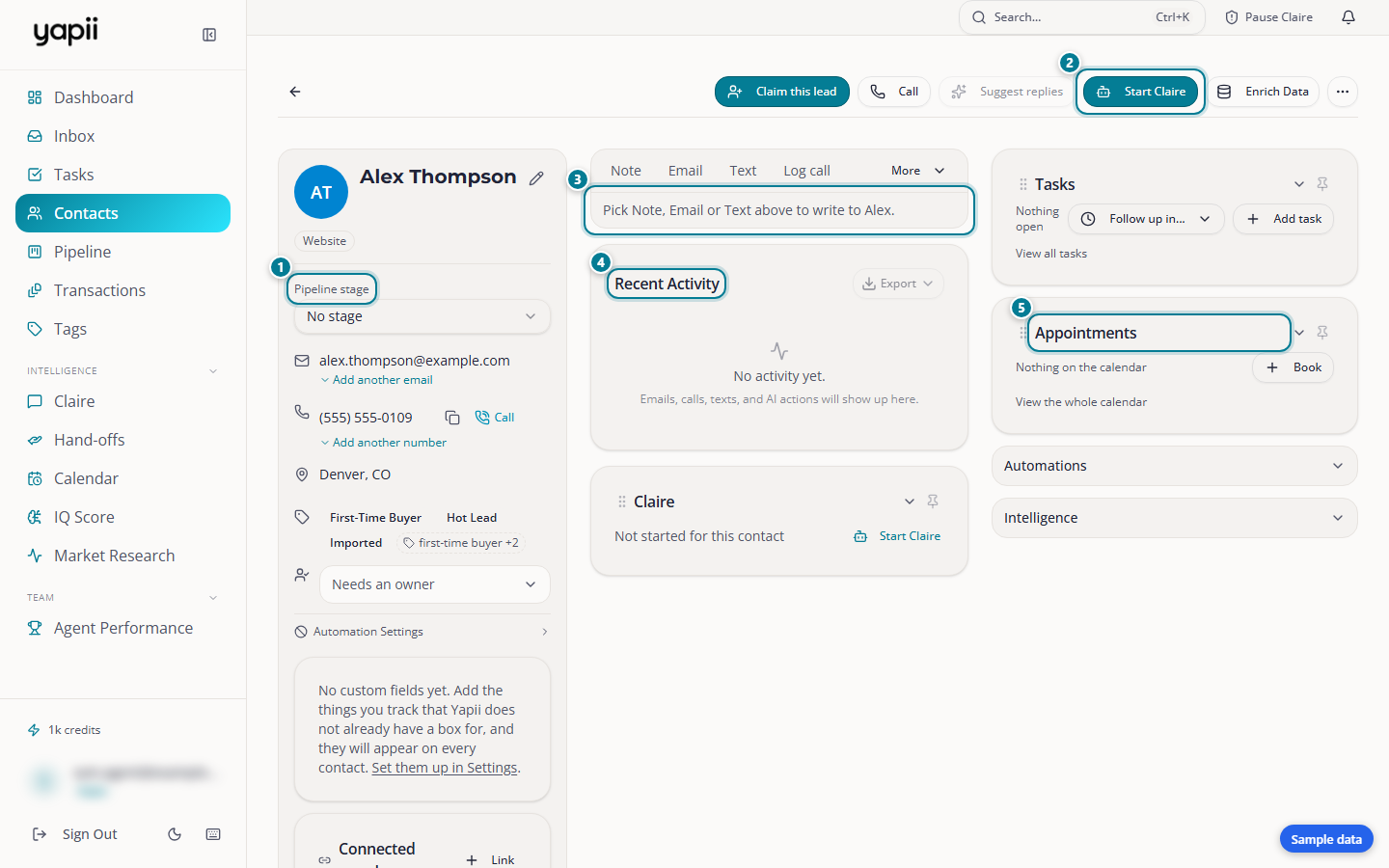
- Their details: pipeline stage, email, phone, location and tags.
- Start Claire: start Claire's conversation with this contact.
- Write to them: add a note, or send an email or a text.
- Recent activity: every email, call, text and note, newest first.
- Coming up: this contact's open tasks and booked appointments, with buttons to add a task or book one. Click a task to open the same panel the Tasks page uses. Changes save as you make them. The round button still completes the task and the bin still deletes it.
From the top of the page you can:
- Call the contact. When your browser can place the call, a Call from list sits beside the button. See Choosing the number you call or text from.
- Email or Text them, or add a Note. Type @ and a teammate's name in a note to notify them. A teammate who isn't allowed to see that contact gets only a short heads-up saying you mentioned them, with no contact name, note text or link.
- Assign the contact to someone (owners, admins and team leads).
- Start Claire on the contact (see Meet Claire).
- Archive the contact.
Choosing the number you call or text from
A browser call has a Call from list, and the text box on a contact's page has a From list. Both are always there. They start on Automatic, which is how Yapii chose before. Pick a number instead and the contact sees that number. A list can hold:
- the number already Assigned to this contact, when Claire's calls and texts to them go out from one;
- your own Yapii numbers;
- the company line and any team lines you are allowed to use;
- for calls only, your Agent Number, once it is verified. A number from outside Yapii can place calls but cannot send texts, so it is not in the From list.
Another person's own number is never listed. An inbox line is listed only to the people on that inbox, so being an owner or admin is not enough. An admin can also limit the company line to certain people (see Phone lines). Yapii checks your choice again when you call or send, so the list is a convenience and not the rule. If you may not use the number, the call says so on screen before it connects.
When a text is refused because of Do Not Contact
If you text a contact marked Do Not Contact from their page, Yapii does not send it and says why in plain words, under Not sent.:
- For a flag set in Yapii: "This contact is marked Do Not Contact. Turn off Do Not Contact on the contact to message them. Removing a dnc tag does not turn it off."
- For a flag your CRM set: "This contact is marked Do Not Contact because their CRM set it. Turn off Do Not Contact on the contact to message them." The reason from the CRM, which names the tag or stage, shows under it. Taking the tag off in your CRM does not clear the flag in Yapii.
Your message is kept, so you do not have to type it again. Open Do Not Contact switch takes you to the switch on the contact. Only turn it off if the person really agreed to hear from you.
Emailing one contact
When you write an email to one contact, a few extras sit under the message:
- Attachments: attach files, up to 20 MB in total. A file that would push you over says Attachments too large. Share bigger files as links instead.
- Signature: pick one of your saved signatures, or No signature. The picker only shows when you have a saved signature to choose.
- Send from: if you have connected more than one mailbox, choose which one sends. Send from: automatic is the default. If a mailbox can't send, Yapii skips it and tries another. If you name one, the email goes from exactly that mailbox, and you are told if it fails instead of it switching to another.
The side panels hold the contact's tasks, appointments, sequences and Claire's plan. The Intelligence group holds extra insight, such as the homeowner's seller readiness and local market signals.
Organizing contacts
Tags
Tags are labels such as "past client", "open house 5/12" or "investor". Add them on a contact's page, in bulk from the Contacts list, or during an import.
The Tags page lists every tag with how many contacts use it. From there you can rename, merge or delete tags.
Renaming or deleting a tag changes it everywhere
Renaming, merging or deleting a tag updates every contact in the workspace that has it, including contacts you can't see.
Lead type and stage
- Lead type is seller, buyer, agent, Running Claire or other. It decides which emails and Claire conversations fit the contact.
- Stage is where the contact is in your Pipeline.
When you press Start Claire, one or many contacts at a time, you pick Seller, Buyer or Other. Other uses the general seller conversation and does not change the contact's lead type.
Custom fields
Owners, admins and team leads can add your own fields, such as "school district", in Settings, under Custom Fields & Offices, on the Custom fields tab. They then appear on each contact's page and as filters.
The IQ score
Every contact has an IQ score from 0 to 100: Yapii's estimate of how worth working that contact is right now. It considers:
- where the lead came from;
- how recently you were in touch;
- follow-ups coming due;
- property value and equity;
- tags such as hot or VIP;
- what the contact has said.
The score is recalculated whenever the contact changes, and again overnight. Contacts that reach 80 are tagged Hot automatically. The IQ page shows your top opportunities and how "warm" your whole database is.
Treat the score as a daily guide to who to call first, not a permanent grade.
Working with many contacts at once
Tick the boxes next to contacts. When the contacts you ticked are only some of the matches, a bar above the list offers Select all and the number of contacts matching this filter. Click it to pick every contact that matches your filters, not just the ones on this page. The bar then says All of them are selected, and Clear selection undoes it.
Four things stay in view above the list: Dial these leads, Message, Add tag and a More button (More bulk actions) that holds everything else. Message and Add tag are icons, so hover over one to see its name. If you're hunting for an action by name, such as Assign agent, Archive or Export CSV, look under More.
Sending leads to the dialer
Dial these leads opens Send leads to dialer, which builds a dial list from the contacts you ticked. With nothing ticked, it works on everyone your filters match, when Yapii can count them. Give the list a name, pick the order (Highest priority first, Longest since last contact first, Newest first or Name A to Z), and choose Create list, dial later or Create list and start dialing. People with no phone number or on Do Not Call are left off. The box shows how many will be added, and lines starting Skipped: say how many were left off and why.
A dial list made from the contacts you ticked holds at most 300 leads. If you tick more, Yapii says "You can only send up to 300 leads to the dialer at a time." Narrow your filters, or tick fewer contacts, and try again.
When you pick Select all for every contact matching your filters, the box also asks What goes on the list:
- Just these leads, once: up to 300 people picked now. When they are done, the list is done. It is not offered when the filter matches more than 300.
- Keep it filled from this filter: starts with up to 300. As leads are called, the next matching leads join, so you can dial all day. Only leads who can be called right now are added, and nobody is added twice. A filter that matches more than 300 can only go as this kind of list.
Working a dial list
Dial lists on the Contacts toolbar opens the lists that are not finished, each with how many are left. A list that keeps itself filled is marked Refills and stays in the menu. Pick one to open it. At the top you see its name, and for a list that refills, Called today, Up next and On the list so far. Next up shows the next person with their number. Call rings them in your browser, Done marks them called, and Skip moves on. Everyone below shows their number, or Called, Skipped or Removed: do not call. Someone who asks not to be called after the list was built is taken off it, and the list says so. Delete list removes the list, not the contacts.
Everyday changes:
- Tag them, or Remove tag to take one tag off all of them.
- Change stage, Add to segment or Add to group.
- Update timeframe, when a group of leads has moved their plans.
- Send SMS to them (see Texting many contacts at once).
Who works the contacts:
- Assign agent gives them to a teammate (owners, admins and team leads).
- Add collaborators or Remove collaborators, to share contacts without reassigning them.
- Assign lender to record which lender is on the file. The lender can then see that contact, and a lender sees only the contacts assigned to them. Sharing a contact with anyone else is what collaborators are for, and sharing a lead with a loan officer who has connected to you is its own thing.
- Move to pond, so anyone on the team can pick them up. A pond holds only contacts nobody owns, so a contact that is assigned to a teammate is unassigned when it moves. The box says how many will be unassigned (for example 1 contact will be unassigned from their team member.) and asks you to confirm. Moving contacts that someone owns needs Contacts: Change Ownership, and without it the move is refused with that reason.
Outreach:
- Apply automation puts them into an automation. This used to be called "Enroll in playbook" and it's the same thing.
- Hand to AI Agent, or Start Claire on them.
- Opt in to voice & text, when you have their permission. Two dialogs ask you to confirm that you hold proof of consent for each contact. The second one needs the workspace owner's authenticator code, so the owner has to approve it even when an admin is the one doing it. Contacts that already have consent on file are skipped, and the action goes in the audit log with your name.
Getting data out (owners and admins):
- Export CSV, or Export activity.
- Mailing labels gives you a PDF of names and postal addresses laid out for Avery 5160 label sheets, ready to print.
Tidying up:
- Archive them. You get a short Undo window.
- Re-activate brings suppressed contacts back. It only shows while you're looking at Suppressed contacts.
Permanently delete is there too, for contacts you have already archived. It can't be undone.
Deleting a contact needs the Contacts: Delete permission, whether you use the bulk bar or the Delete button on a contact's side panel. Without it the button is turned off, and hovering over it says to ask a workspace administrator to turn on Contacts: Delete.
Texting many contacts at once
The Send SMS action (the Message button on the action strip) opens a three-step dialog. First, type your message. Merge tags such as or fill in each person's own details. Then check the count: the dialog asks Send this text to the number of contacts you chose, and shows a Preview (first contact). Nothing is sent until you press the send button on that second step, and Back returns you to the message. Last, a results list shows each person as Sent or Not sent, with the reason next to the name.
Each contact gets their own copy in their own conversation, and nobody sees who else it went to. Anyone who opted out, has no phone number, or is outside texting hours where they live does not get it.
Merging duplicates, and changing a lead source
Two more actions live at the bottom of the list rather than in the row of actions above it. With contacts ticked, click Options at the bottom of the screen:
- Merge Contacts merges 2 to 10 contacts into one. Tick between two and ten, or the option stays grayed out and reads Merge Contacts (select 2 to 10). See Merging contacts for what happens, and Duplicates for finding them in the first place.
- Lead Sources changes which lead source the selected contacts came from.
Locking the lead source to owners and admins
By default anyone who can edit a contact can change its Source. An owner or admin can switch on Lead source lockdown in Settings, under Contacts, Ponds & Calls, on the Lead rules tab, to keep that to owners and admins. The card reads Every role can change a contact's lead source while it is off and Only an owner or admin can change a contact's lead source while it is on. Anyone else sees the card without a working switch and a line saying only the owner or an admin can change it.
While it is on, everyone else sees Source as read-only when they edit a contact, with the note Only an owner or admin can change the lead source while lead source lockdown is on, and Lead Sources in the bottom Options menu is grayed out with the same reason. Yapii also refuses the change if it arrives any other way. Owners and admins are not affected, and the setting is off until someone turns it on.
You may not see every action listed here. Some are for owners, admins and team leads only, and some are turned off by your role's permissions. An action you can't use is grayed out and says why when you hover over it.
Deleting and restoring contacts
In Yapii, deleting a contact archives it:
- Open the contact and choose Archive.
- Pick a reason (duplicate, wrong number, opted out, not a lead, other).
Archived contacts disappear from your lists and from all outreach, but nothing is erased. An archived contact's page says This contact is archived at the top: calling, texting and Claire are off until it's restored.
To restore a contact: on the Contacts page, open Filters, set Record status to Trash, select the contact and restore it. You can also click Restore on the banner at the top of their page.
Erasing is permanent
Owners and admins can permanently erase a contact's data, for example when a person asks to be forgotten. This removes the contact and their history for good and can't be undone.
Duplicates
- On the Contacts page, click Manage, then Find Duplicates. Yapii groups contacts with the same email, the same phone number or very similar names. A group of 2 to 10 people has a merge button, and you choose which one is the primary contact.
- Smart Dedupe reviews duplicate suggestions Yapii finds automatically in the background.
Agent-owned lead duplication
In Settings, under Contacts, Ponds & Calls, on the Lead rules tab, the Agent-owned lead duplication card controls what happens when an agent's own lead feed sends in a lead who is already in Yapii under another agent. Leads sent in by software that posts leads to Yapii with a key that belongs to a plain member are the ones it covers.
- Leads always merge into an existing contact is the setting until you change it. The lead is added to the contact that is already there.
- Agents' own leads can duplicate instead of merging: the agent gets a new contact of their own. Later leads from the same agent update that copy.
A lead the agent already owns still merges. Leads matched to an owner, an admin, a team lead or an unassigned contact always merge. Only an owner or admin can change it. Everyone else sees the card with a line saying so.
Merging contacts
Merge Contacts combines 2 to 10 people into one. It is for owners and admins, and it also needs the merge permission to be on for your role. You can start it from Find Duplicates, or tick the people on the list and use Options at the bottom of the screen.
- Pick the Primary contact. The primary keeps its own name, assigned agent, lender, stage, source, background and running automations.
- Leave Merge as relationships unticked when the people are the same person. Tick it for different people in one household, such as a spouse. They are then kept as attached people on the primary with their own names, emails and phones, instead of having their emails and phones added to it.
- Read the list under the choices, then press the button, which names how many contacts it merges, such as Merge 3 contacts.
What moves to the primary: notes, activity, tasks, deals, texts and emails. Automations on the other contacts are paused. Their emails, phone numbers, addresses and tags are added to the primary, unless you chose Merge as relationships. A custom field is filled only where the primary's is blank, and a note on the primary's timeline lists anything that could not be carried over.
Consent is the strictest of the lot. If any of the people opted out or is marked do not contact, the primary is too, and a stop on one of their numbers or email addresses is recorded against the primary's own.
A merge cannot be undone
The other contacts are removed from your lists and their history lives on the primary. If a person in the group sits in a Do Not Contact pond from your CRM and the primary does not, Yapii refuses the merge and says who and which pond.
Who sees which contacts
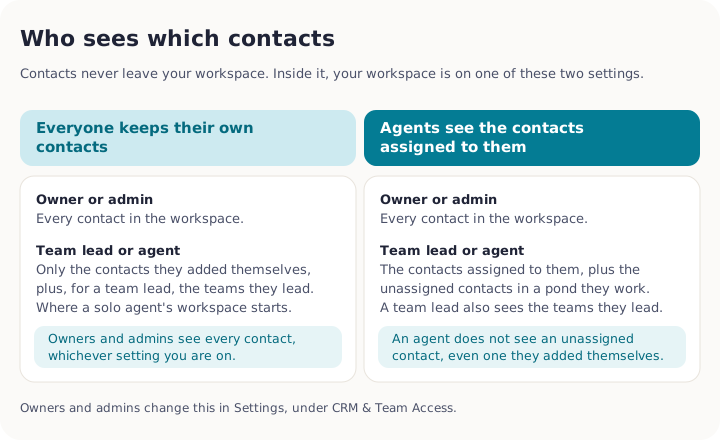
This depends on a workspace setting called contact visibility:
| Setting | What people see |
|---|---|
| Everyone keeps their own contacts | Each person sees only the contacts they added themselves. Owners and admins are the exception: they see every contact in the workspace. A solo agent's workspace starts on this setting. |
| Agents see the contacts assigned to them | Owners and admins see everything. Team leads see their own contacts and those of the teams they lead. Each agent sees the contacts assigned to them, plus the unassigned contacts in a pond they work, and the pond leads your CRM keeps on the workspace owner, which they can claim. A contact whose lender is that agent is also visible to them. A workspace set up for a team or brokerage starts on this setting. |
A team lead does not see the whole workspace on either setting. They see their own contacts and the contacts of the teams they lead, and nobody else's. A team leader (the star on a team) is the exception to both settings. If you lead a team, you also see every contact assigned to, or created by, the people on it. The workspace owner marks team leaders in Settings, under Team & Roles, by clicking the star beside a person while editing a team.
Owners and admins
Change this in Settings, under Contacts, Ponds & Calls, on the Access tab. Switching to the assignment setting can leave agents with an empty list until contacts are assigned, so plan the switch.
Whichever setting you pick, an owner or an admin sees every contact in the workspace. The setting decides what team leads and agents see, and a team lead is always limited to the teams they lead.
Blur mode
Blur mode hides contact phone numbers and emails from everyone except owners and admins, which is handy when you share your screen. An owner or admin turns it on in Settings, under Contacts, Ponds & Calls, on the Access tab, on the Blur mode card. The switch reads Phone numbers and emails on the Contacts pages are blurred for every other role when it is on, and Every role sees phone numbers and emails when it is off. It is off until someone turns it on, and it is one setting for the whole workspace, not a choice for each person.
Where it applies, a phone number shows as dots, like (•••) •••-••••, and an email as dots before and after the @. A second number or email adds (2), (3) and so on. There is no way for a blurred person to uncover a value: the real number never reaches their screen.
It covers more than the Contacts pages:
- the Contacts list and a contact's page
- search results
- the Inbox: the conversation list, an open conversation, and the contact's side of each text
- the Pipeline cards
- contact exports
Your own company's numbers in a text conversation stay readable. Task cards do not show phone numbers or emails, so nothing is hidden there. A blurred person can still email, text or call a contact. The edit window says Phone numbers and emails are blurred for your role, so they cannot be edited here. Software that uses an API key always gets the real values.
Sharing one contact: collaborators
The setting above is workspace-wide. To share a single contact with a teammate without changing it, add them as a collaborator. Open the contact and use the Collaborators panel: Add collaborator, then search for the person.
- A collaborator sees that one contact, and nothing else changes for them.
- They can be removed again, which takes that contact back out of their list.
- Only owners, admins and team leads can add or remove collaborators, and only for a contact they can already see themselves.
- A collaborator is different from the person a contact is assigned to. A contact has one assigned agent and can have several collaborators.
Why didn't this contact get my email or text?
When a message doesn't reach someone, you can ask Yapii on the contact's own page. Open the contact, go to Details, and look in Consent & compliance for Why didn't they get it?.
Pick Email or Text, and Yapii runs the real checks against this contact and tells you what it finds. Check again re-runs it, which is what you want after you've fixed something.
You get one of three answers:
| Answer | What it means |
|---|---|
| Something is in the way | Yapii names what stopped it, in plain words. |
| Nothing is stopping this from going out right now | Nothing would block a message if you sent one now. |
| We couldn't work out an answer | Usually there's no email address or phone number on file. |
Two things it is careful to tell you, and both are worth reading:
- A clear answer is not a promise that something is scheduled. It only means nothing would stop a message if you sent one now. Whether anyone is actually due to contact this person is a separate question.
- Yapii stops at the first thing in the way, so there may be more behind it. Fix what it names, then check again.
A clear answer is not the same as "safe to contact"
Some checks can't be answered without spending money or using up part of your daily sending allowance, so Yapii doesn't run them for a question. Anything it couldn't check is listed under What we could not check, and that list is not a list of things that passed. The do-not-call registry check is the one to watch: no do-not-call service is connected, so nothing here is telling you whether a number is on a federal or state list. Your own suppression list and the contact's consent are still yours to check.
The check also names which kind of send it looked at, because they are not all the same. For text messages it checks the strictest path, the one Claire's automated texts take. A text you type yourself skips the consent and quiet-hours checks, so it can go out when that one would not. That means the written consent that automated texts need. It still needs a record that the person agreed to be texted.
Troubleshooting
I can't find a contact I know is there.
- Clear your filters and search.
- Check the Trash: open Filters on the Contacts page and set Record status to Trash.
- Remember the visibility setting: a teammate's contact may not be visible to you. Ask them to add you as a collaborator on it if you need that one contact.
Yapii says the email already exists, but I can't see that contact. The duplicate check only looks at contacts you can see. Ask a teammate or your admin.
The IQ score looks wrong. It changes daily with new activity. Open the contact to see the top reasons behind the score.