
Appearance
Tasks
Tasks is your to-do list: the calls, texts, emails and other things you owe your contacts.
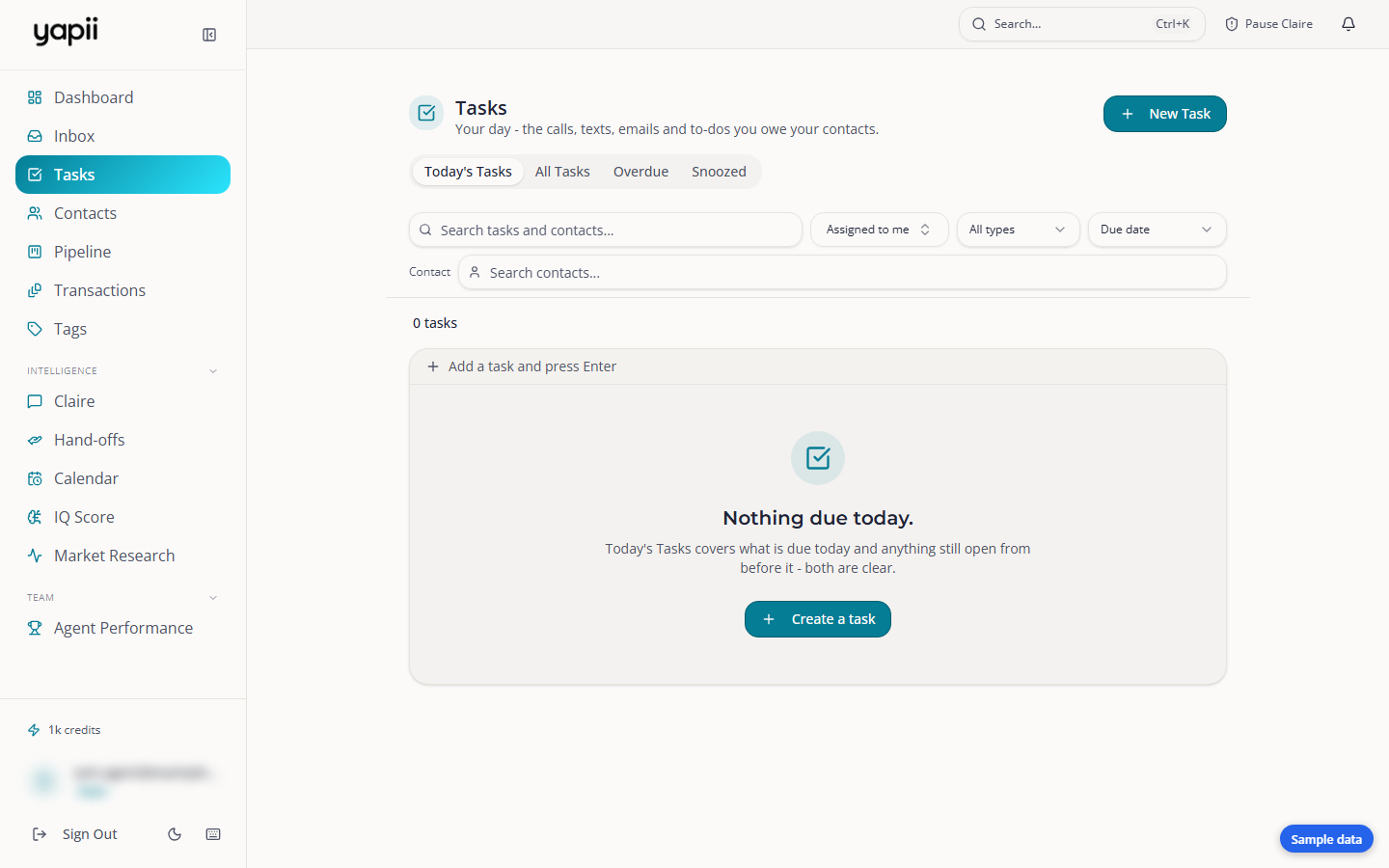
Around the Tasks page
- Tabs:
- Today's Tasks (where the page opens): due today, plus anything overdue;
- All Tasks: every task, with no date limit;
- Overdue: past the due date and not done;
- Snoozed: pushed to a later morning. Snoozed tasks don't show in the other tabs;
- Your Transactions: the deadlines and warnings from your transactions, rather than tasks. It sits after Snoozed and carries a count of what needs you.
- Assigned to: starts on Assigned to me. Choose Anyone, or a teammate, to see other people's tasks.
- Type filter: Call, Text, Email, To-do.
- Sort by due date, priority, contact or newest.
- Contact: show only the tasks for one contact.
- Search by title, notes or contact name.
On All Tasks you can also narrow the list by when tasks are due: All, Today, This Week, Due or soon (the next 7 days), and No Due Date. Transactions only shows just the tasks from your transactions.
Tasks are grouped by when they're due: Overdue, Today, Tomorrow, This week, Later and No due date. Due dates read in plain words, such as "3 days overdue".
Each task says who it is for. The row shows the contact's name with their address beside it, and when you open a task, the panel shows the contact's name, a View contact link and their address under the title. View contact opens the contact in a new tab.
Adding a task
- Click to add a task, from the Tasks page or a contact's page.
- Give it a title and choose its type: Call, Text, Email or To-do.
- Pick a due date. Shortcuts such as Today, Tomorrow and Next week save typing.
- Link it to a contact, and assign it to yourself or a teammate.
Getting tasks done
Complete a task to tick it off. It's noted on the contact's timeline. Repeating tasks create their next copy automatically.
Snooze a task: Tomorrow morning, In 3 days or Next week. Snoozed tasks come back at 8 AM in your workspace's time zone.
Walk the list. Open a task's contact link and the contact's page shows Person 3 of 7 with left and right arrows at the top right, so the next call is one click away instead of a trip back to Tasks. The list is a snapshot of the open tasks as they were when you left the page, one stop per person, so finishing a task or logging a call on the way does not drop anyone or shift the numbers. A contact you open from anywhere else looks as it always did.
Tasks from other places
- Transactions: checklist tasks for a deal show on Tasks too, labeled with the property.
- Follow Up Boss: if your workspace pushes next steps to Follow Up Boss, tasks you create in Yapii are copied there.
- Claire: when a lead asks for a call at a certain time, Claire creates a high-priority call task for that time, assigned to the agent.
Who sees which tasks
Normally you see tasks you created or that are assigned to you. In workspaces where leaders see everyone's contacts, owners, admins and team leads can read everyone's tasks. Only the creator or the person assigned can change a task.