
Appearance
My Agents
My Agents is where you see and control Yapii's AI agents, including Claire: what each one is doing, whether it's on, and any drafts waiting for your approval.
Owners, admins and managers
Owners, admins and managers can open My Agents. Only owners and admins can change anything; everyone else sees a Read-only badge.
Open My Agents from the left menu, under Team.
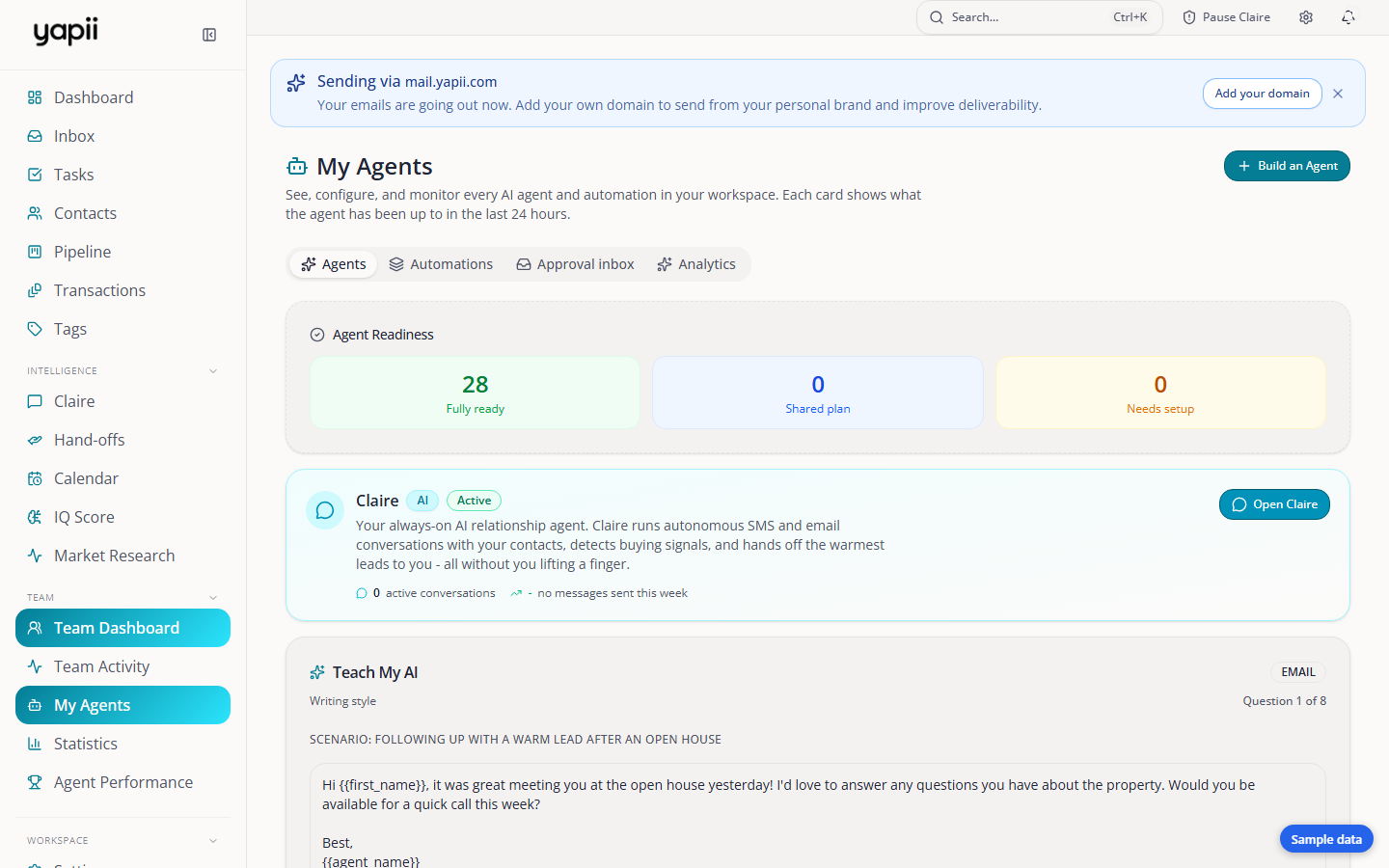
The tabs
| Tab | What it's for |
|---|---|
| Agents | Every agent, what it's been doing, and a switch to turn it on or off. |
| Automations | The same view for automations. |
| Approval inbox | Messages the agents have drafted that need a person to approve. The number shows how many are waiting. |
| Analytics | Detailed numbers on how the agents are performing and what they cost. |
The Agents tab
- Agent Readiness shows each agent as Fully ready, Shared plan or Needs setup. Click Connect in Settings to finish setting one up.
- Claire's card shows her active conversations and her reply rate this week. N ready for you means hand-offs are waiting. Open Claire takes you to the Claire page.
- All agents lists each agent with what it did in the last 24 hours and anything pending. Filter by Needs attention, On or Off.
- Teach My AI asks eight quick questions to set up your AI profile.
Turning an agent on or off
Owners and admins can use the switch on an agent's card. Turning an agent off stops its live outreach. You have 10 seconds to click Undo if you change your mind.
Approving drafts
In the Approval inbox, hot contacts come first. For each draft you can:
- Approve: send it as written.
- Edit & Approve: change it, then send it.
- Snooze 24h: decide tomorrow.
- Reject: don't send it.
Be careful
Approve all and Approve selected send every draft in the group. Re-generate all throws away the current drafts, including any edits you made.
See also Approving, pausing and taking over.