
Appearance
Importing contacts
The fastest way to get value from Yapii is to bring in your whole database. You can upload a spreadsheet, or connect Follow Up Boss so contacts keep syncing on their own.
You choose whether an import messages anyone
The import screen asks what should happen next, and Just import is the default: it adds the people and sends nothing. The other two choices do send. Read What happens after the import before you pick one.
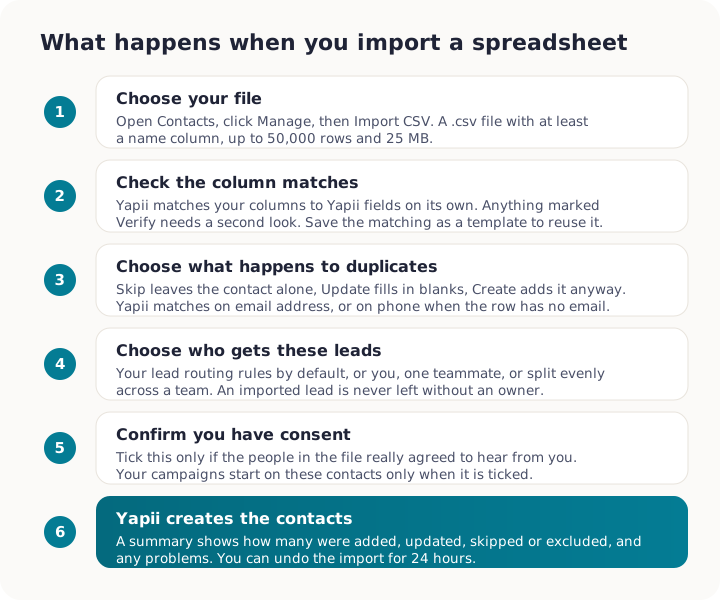
Upload a spreadsheet
Before you start
- Save your spreadsheet as a .csv file. Excel and Google Sheets can both do this ("Save as" or "Download").
- Importing is on for every agent by default. An owner or admin can turn it off for a person on the Team page's Permissions (Imports, Contacts). When it is off, Import CSV is grayed out and says importing is turned off for you.
- Include at least one name column. Email, phone, address, tags, lead type and source all help too.
- A file can have up to 50,000 rows and be up to 25 MB. Split bigger files in two.
- If your file names the agent for each row, invite those teammates to Yapii first. The Assigned agent column matches people who are already in your workspace. Import before the invitations are accepted and every row comes back unmatched, and those contacts are left unassigned. See Give each row its own agent.
Steps
Open Contacts, click the Manage menu and choose Import CSV.
Choose your file.
Check the column matches. Yapii matches your columns to Yapii fields automatically. Anything marked Verify needs a second look. If you import the same kind of file often, save the matching as a template. This is also where you match a column to Assigned agent, if your file has one.
Choose what happens to duplicates (see below).
Choose who gets these leads:
- Team routing rules (may go to other agents), using your workspace's lead routing rules (the default for owners, admins and team leads);
- me;
- one teammate;
- split evenly across a team.
Only owners, admins and team leads can pick teammates. An agent sees no choice here: every row in an agent's file becomes theirs.
Under one teammate, the list also names agents who have no Yapii login yet, such as people brought in from Follow Up Boss, marked (not on Yapii). Pick one of them and the contacts are owned by that agent.
This choice covers the whole file. To give each row its own agent, use the Assigned agent column instead: see Give each row its own agent.
Put these leads in a pond (optional). Owners and admins who have ponds see Put these leads in a pond. Pick a pond and the new contacts go into it with no owner, so the choice in the step above does not apply to them. Contacts the import skips or updates stay where they are. Leave it on No pond to import as usual.
Consent. Tick I have consent to contact these people only if the people in the file really agreed to hear from you.
Choose what happens after the import (see below). If you are not sure, leave it on Just import.
Start the import.
A progress bar shows while the import runs; you can keep working meanwhile. When it finishes you'll see a summary: how many were added, updated, skipped or excluded, and any problems such as invalid emails.
Give each row its own agent
If your spreadsheet already says who owns each lead, you don't have to split the file up or assign the contacts afterwards. Match that column to Assigned agent in the column matching step, and each row goes to the teammate it names.
Invite your agents before you import
The column matches teammates who are already in your workspace. If you haven't invited them yet, no row matches, and those contacts come in unassigned. Invite your team first, then import.
What goes in the column. Either the teammate's email address or their full name. Yapii tries the email address first. Capitals and extra spaces don't matter, so "Becky Namarome" and "becky namarome" both match. A first name on its own does not: Yapii will not guess which Chris you meant.
A blank cell is fine. Rows that leave the column empty fall back to the Choose who gets these leads answer you picked for the whole file. The column is a per-row override, not a replacement for that choice.
Yapii never guesses an owner. A cell it cannot match with confidence leaves that contact unassigned, rather than handing it to you or to your routing rules. A lead sitting with the wrong agent is the kind of mistake nobody notices, so Yapii would rather leave it plainly empty. One row it can't match never stops the import.
You get told which rows didn't match. The import summary has an Assigned agent column section: how many contacts were matched, how many rows left the column empty, and every value it couldn't place, with what to do about it:
| What you see | What it means |
|---|---|
| nobody on your team has that name or email | That person isn't in your workspace. Invite them, then re-import those rows. |
| more than one team member has that name | Two teammates share that name. Put their email address in the column instead. |
| you can only assign imported contacts to yourself | Your role doesn't allow handing leads to other people. |
Who can use it. Handing leads to other people takes the same roles as the file-wide one teammate choice: owners, admins and team leads. An agent's import ignores the Assigned agent column: every row becomes the agent's own.
Changed your mind?
You can undo an import for 24 hours, whatever your role. Look for Recent imports on the Contacts page.
Seeing what everyone imported
Owners and admins also see Import history (all members) in Settings, under Data & Privacy, once anyone in the workspace has imported. It is no longer on the Contacts page. Each line says who imported, the file name (or CSV upload when there is none), how many contacts were added, updated and skipped, how long ago it happened, and undone if it was undone. It shows the five most recent imports and up to the latest 50. Press Show all to see the rest and Show less to fold it back. Team leads and members do not see it.
Owners and admins can also undo another person's import from this list while it is under 24 hours old. Press Undo on the line, then Undo import to confirm. This removes the contacts that import added, even if they have since been given to other agents, so check nobody has started working on them first. Any contacts the import replaced are put back. Undo needs the Delete switch under Imports on the Team page's Permissions, which owners and admins have unless it was switched off for them.
How duplicates are handled
Yapii checks each row against contacts you already have. It matches by email address, or by phone number when the row has no email. You choose what happens to a match:
| Option | What it does |
|---|---|
| Skip | Leaves the existing contact alone. |
| Update | Fills in any blank fields and adds new tags. It never overwrites information you already have. |
| Create | Adds the row as a new contact anyway. |
A contact you archived earlier comes back if a row matches it. This is true however big the file is, including large files that Yapii imports in pieces, and the notes for those rows read "Restored - matched archived contact" instead of counting them as skipped.
Duplicates across a team
The check only looks at your own contacts. If a teammate already has the same person, you'll get a second copy. Owners and admins can clean these up afterwards with Find duplicates on the Contacts page.
If an agent's row matches a contact they added earlier but can no longer see, the row is skipped with the note "Skipped - matched an existing contact you do not have access to". It is never merged into that contact or copied, and a Do Not Contact request in that row still applies to the existing contact.
What happens after the import
Near the end of the import screen, Yapii asks what should happen to the people in the file. The same question, with the same three answers, is on the Contacts import, the setup wizard and the Homeowners import.
| Choice | What it does |
|---|---|
| Just import | Adds these people to your database and nothing else. No emails, texts or calls go out. This is the default. |
| Start automations | Adds them, then starts the automation that matches each contact's lead source. These people begin receiving emails and texts. |
| Automations + Claire | Everything above, and Claire also calls and texts the contacts whose lead source you have approved in your AI outreach settings. |
Two of these send to real people
Only choose Start automations or Automations + Claire for people who have agreed to hear from you. You can start automations or Claire later, once you have checked the list, and nothing is lost by importing first.
Claire does not reach everyone in an Automations + Claire import. She works the contacts whose lead source you have already approved, so a source you have not named stays silent. See Lead sources and routing.
The Homeowners import can only use Just import. It adds properties rather than people, so there is nobody for an automation to email or for Claire to call.
The monthly home value email
Below the three choices is a tick: Send the monthly home value email to the homeowners in this file. It starts on.
This already happens on every import, so the tick is there to let you hold it back rather than to switch something new on. Untick it to import without it. See Monthly home value email for who receives it.
Contact limits
Today's plans have no contact limit. Some older plans do, and on those imports never stop at the limit: extra contacts are billed monthly, and the import summary tells you when this applies. See Plans, billing and credits.
Connect Follow Up Boss
If you use Follow Up Boss, connecting it keeps Yapii up to date automatically.
Owners and admins
Connecting a CRM is done in Settings, under Integrations.
- In Follow Up Boss, copy your API key. It is under Admin, then API, where you can create a new one.
- In Yapii, open Settings, then Integrations, and choose Follow Up Boss.
- Paste the key and click Test connection.
- Choose whether to import your contacts or connect only your agents.
- Choose how much to bring across. Only leads assigned to me is the one to pick unless you run the whole team.
- Under What should start on these people?, choose Just import, Start automations or Automations + Claire. It is not shown if you connect only your agents, because nobody is imported. Just import is already selected.
- Connect.
Coming from Follow Up Boss
Yapii has a guide of its own that maps Follow Up Boss to Yapii feature by feature: lead synchronization, team visibility, agent assignment, campaigns, action plans, email lead capture and phone numbers. There is no menu item for it: search for Coming from Follow Up Boss from anywhere in Yapii, or follow the link on the Integrations page.
The three choices are the same ones the spreadsheet import asks (see What happens after the import), with one difference. Here, only the people whose lead source you have approved in your AI outreach settings are started, and the monthly home value email still goes out, as it does on every import. The choice applies to the people this connection imports. Leads that arrive in Follow Up Boss after the import has finished follow your AI outreach settings, whatever you pick.
Contacts then sync in the background. The first sync of a big database takes a while; you can keep working meanwhile. After that, new people and changes in Follow Up Boss flow into Yapii, and notes, texts and calls in Yapii are written back to Follow Up Boss.
A person in Follow Up Boss can have more than one phone number, email address and mailing address. Yapii keeps all of them, not just the main one. The main one is the one Follow Up Boss marks as primary, or the first in its list when none is marked. The others show on the contact as additional numbers, emails and addresses. Someone who was already imported picks up their extras the next time they change in Follow Up Boss, or when a full sync of your account runs.
A US phone number that arrives without a country code, such as 5106882025 from Follow Up Boss, a form or a sign-in sheet, is saved with +1 in front, so Claire and the dialer can use it. Text typed where a number belongs, such as "DNC", is never turned into a number. It is kept exactly as it came, so it can't make a person look reachable when they asked not to be contacted.
You can pause the contact sync, choose which team, pond or lead sources to bring in, or pick individual people to import. It's all on the same Integrations page.
Troubleshooting
The import says a column is missing. Make sure there is a name column and that it's matched to First name, Last name or Full name.
Some rows were excluded. Your workspace may have exclusion rules, for example "don't import contacts tagged past-client". The summary lists what was excluded and why.
I imported the wrong file. Undo it from Recent imports within 24 hours.